
The Easy Steps for Partners to Update Brand and Product Pages
We’re happy to share an exciting new feature that lets Works with SmartThings (WWST) partners manage their brand and certified product pages, seen by millions of SmartThings users.
Partner brand pages, found on Partners.SmartThings.com and in the SmartThings app, are some of the most frequently visited resources. These pages are often the first place users go to discover new brands and confirm product compatibility before making a purchase. Additionally, because they are visible to everyone across the entire web, they expand partner’s reach and strengthen search engine optimization (SEO) for their brand and products.
Now, partners can manage their brand and product pages to showcase offerings and encourage user purchases.
Partners can follow these simple steps to update brand and product pages.
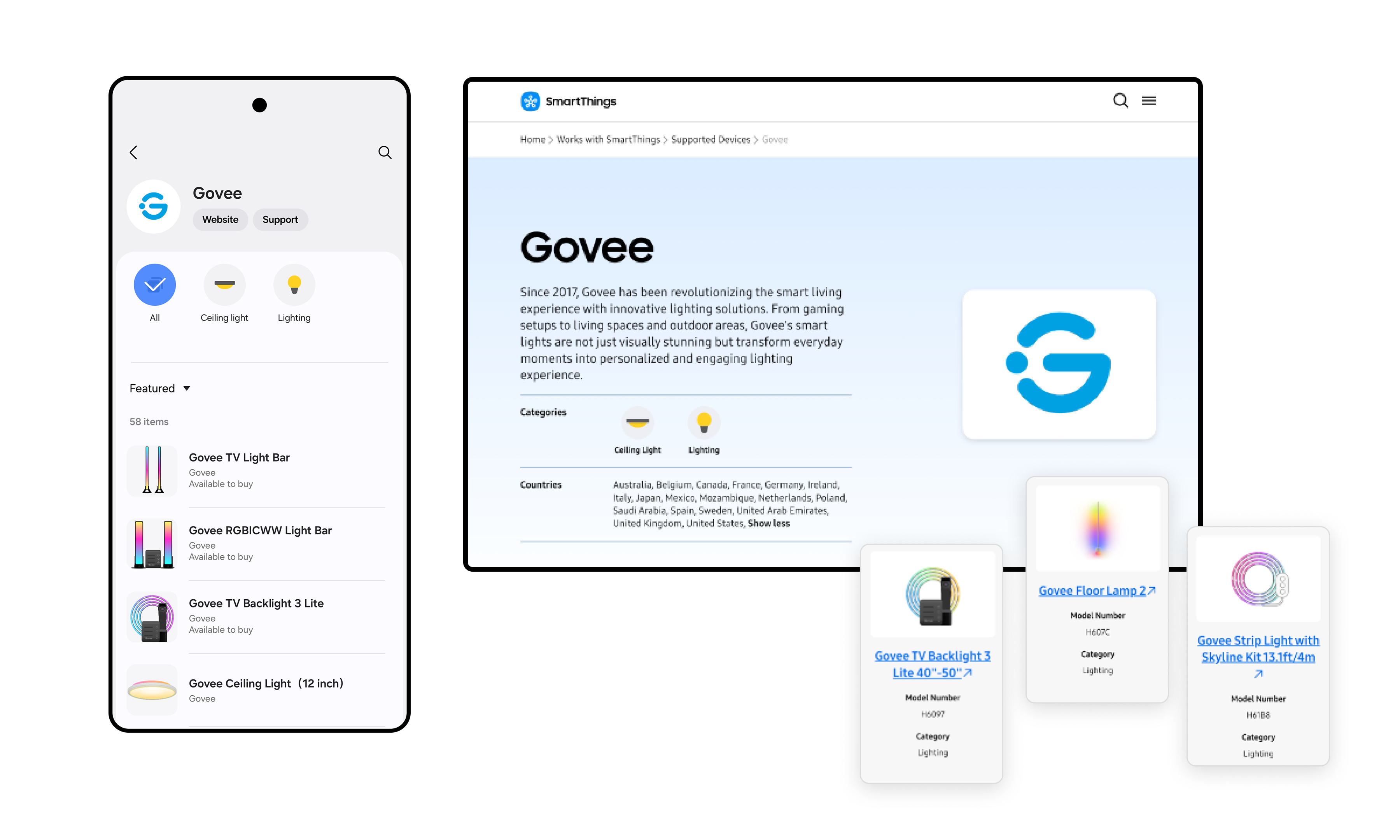
An Easy Way to Showcase Brands and Certified Products
This new feature is a key benefit of the Works with SmartThings (WWST) program. It enables partners to easily keep their brand and product information current, including the latest purchase links, for SmartThings users.
The WWST program offers many benefits, such as:
- Opportunities to promote products to 450 million global SmartThings users
- Brand and product placement on the SmartThings website and within the app
- Use of the WWST badge
- Co-marketing opportunities
- Access to user engagement analytics
- Increased discoverability and trust from SmartThings users
What Partners Can Update
For Brands:
- Brand Name
- Brand URL
- Brand Description
- Logo
- Customer Support Information
- Company Contact Information
- Contact Name
For Products:
- Product Name
- Product Description
- Model Number
- Product Images
- Product Category
- Purchase Links
- Product Distribution Locations
How to Update: A Step-by-Step Guide
For partners that already have an account linked to brands in the SmartThings Console, partners can start updating information immediately.
For partners without an account or if the brands are not linked, please contact the SmartThings team at partners@smartthings.com.
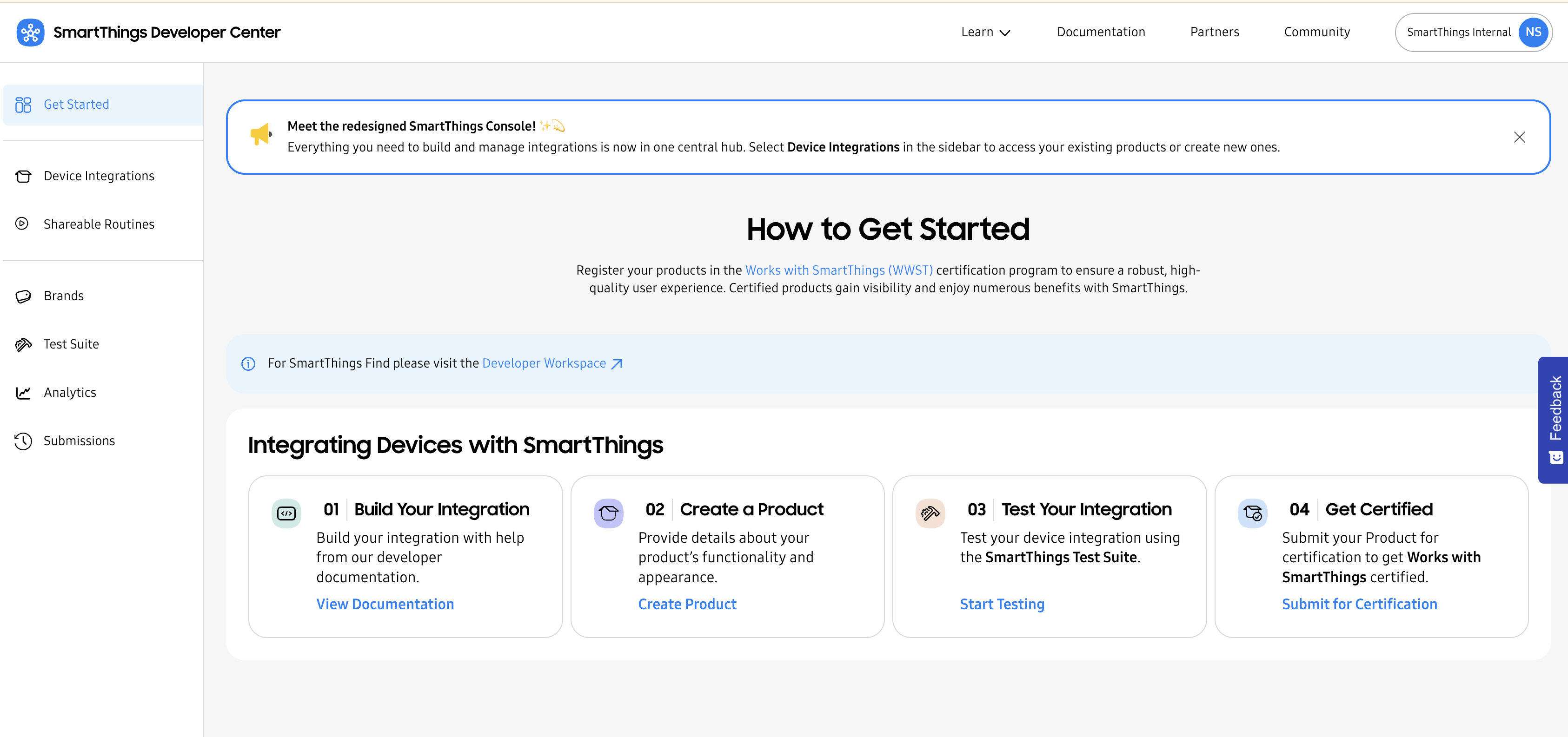
1. Access the SmartThings Console
Access the Console by signing in to the SmartThings Developer Center. From the homepage, use the left-hand navigation to choose the path: Brands, for updating brand information, or Device Integrations for updating product information.
2. Refresh Brand Information
- Navigate: Click the Brands tab.
- Edit: Click the brand and select Edit Brand at the bottom right.
- Make Updates: Update brand details, including logos, customer support information, and more.
- Submit: Update the details, check the permission box in the “Ready to submit?” section, and click Update Brand.
3. Update Product Information
- Navigate: Click the Device Integrations tab.
- Select: Click on the specific product name to edit.
- Refine: Update product details, including product names, model numbers, product images, purchase links, and more.
- Submit: Update the details, check the permission box in the “Ready to submit?” section, and click Update Product.
4. Review and Approval
Once approved, the updated brand and product details will go live in the SmartThings app (please note a brief delay may occur due to caching). Updates will typically appear on the web-based partner brand page within 5-7 business days.
Update Brand and Product Pages Today
Partners can now make these updates in the SmartThings Developer Center today!


